
Help Centre / Using Your Dashboard
Your newsletter subscribers
Your subscribers are everyone your newsletters can go to. You can add people one at a time or import a list.
The Subscribers page
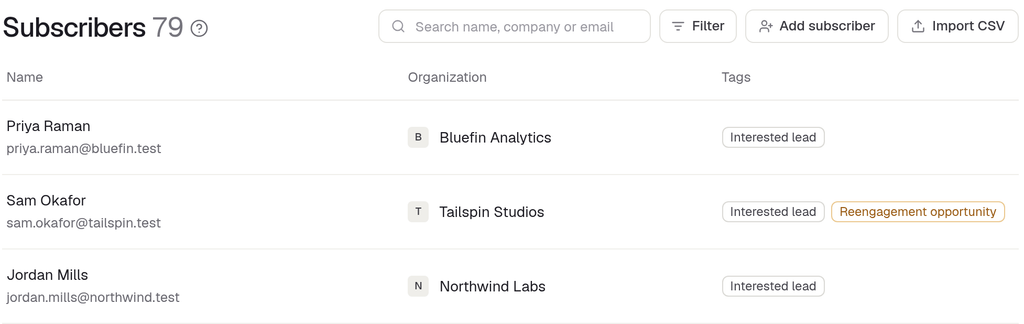
Open Subscribers from the left menu to see everyone your newsletters can go to. Each row shows the person's Name and email, their Organization and their Tags, such as Interested lead, Reengagement opportunity or Past event. Across the top are a search box (Search name, company or email), Filter, Add subscriber and Import CSV.
Adding one subscriber
To add a single person without making a spreadsheet:
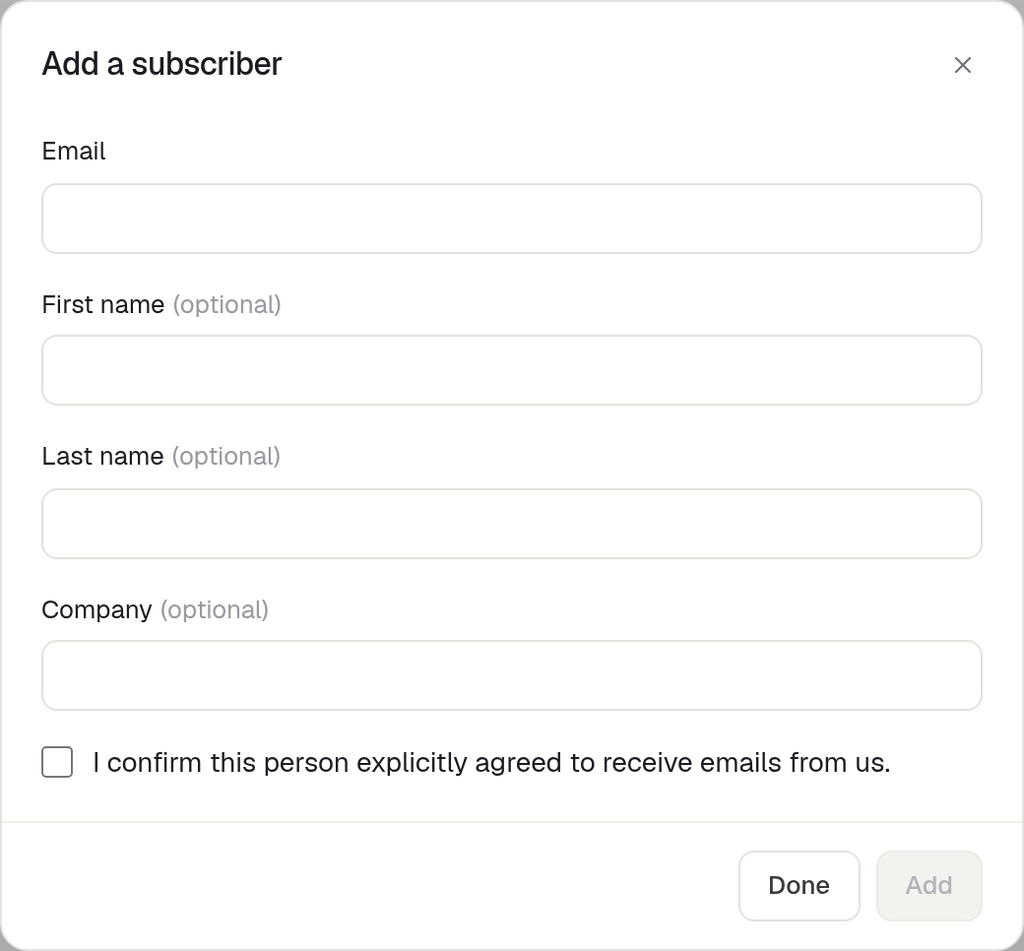
- On Subscribers, click Add subscriber. The Add a subscriber dialog opens.
- Enter their Email. First name, Last name and Company are optional. There are no other fields.
- Tick I confirm this person explicitly agreed to receive emails from us. Add stays greyed out until there's an email and the box is ticked.
- Click Add. A line in the dialog confirms they were added to your Subscribers, and the fields clear so you can add the next person. The consent box stays ticked while the dialog is open.
- Click Done (or ✕) when you're finished.
They appear in the list straight away with the Imported subscriber tag. Hover the tag and it reads "Added by hand".
Adding someone doesn't send them anything: no welcome or confirmation email. It only puts them on your list for future newsletters.
If someone can't be added
If a person can't go on the list, a red message at the top of the dialog explains why, and nothing is added. You'll never see a success message for someone who didn't make it onto the list.
| Reason | What you'll see |
|---|---|
| The email isn't complete | Enter a full email address, like name@example.com. |
| They're already in your audience | {email} is already in your audience. |
| The email domain looks misspelled | Did you mean {suggestion}? Click the suggestion to fix the email. |
| They unsubscribed | This person unsubscribed from your newsletters. That was their decision, so they can't be added back. |
| They're on Do Not Contact | This person is on your Do Not Contact list. You manage that list from their record on the Leads page. |
| Email to them bounced | Email to this address bounced, so it can't receive your newsletters. |
| It's an automated relay address | This is an automated relay address, not a person, so it can't be added. |
- A misspelled domain can't be added as typed. Use the suggestion or correct the email.
- Someone who unsubscribed can't be added back by hand.
- Do Not Contact is managed from the person's record. Open them from Interested Leads.
- If they're already on the list, nothing about them changes.
Importing a list
To add many people at once, use Import CSV. It works the same as before. It doesn't explain each address it leaves out: people who unsubscribed, are on Do Not Contact, have bounced or use a relay address are simply kept off the list. If you're not sure why someone from your file is missing, try adding them with Add subscriber to see the reason.
Good to know
- You can't edit or remove a subscriber from the list yet.
- Someone you add by hand counts as having just asked to join, so they won't make your list look out of date when you send a newsletter.
- To choose who a newsletter goes to, see Newsletters.
Can't find what you need? Reply to any email from your Event Captain team and we'll sort it out.