
Help Centre / Using Your Dashboard
Reading your newsletter report
Every newsletter you send gets a report showing who received it, who opened and clicked, and which inquiries it helped bring in.
Opening a report
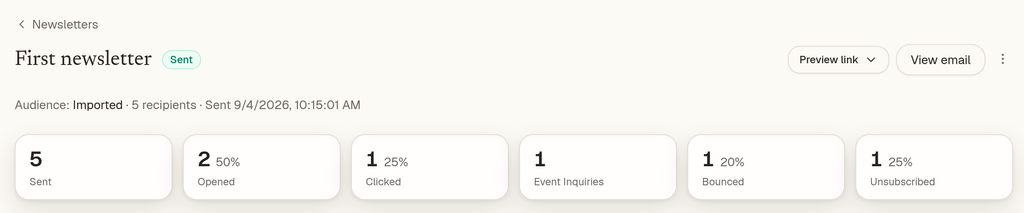
On the Newsletters page, click a newsletter with the Sent badge to open its report. At the top you'll see the audience it went to, how many recipients it had and when it was sent. Below that is a row of cards: Sent, Opened, Clicked, Event Inquiries, Bounced and Unsubscribed. Under the cards are the Clicks and Recipients sections.
Filtering the recipients with a card
Click a card to see just the people behind that number. The Recipients table filters to them, the card is highlighted, and the Filter control shows 1. Click the same card again to show everyone.
- You can do this with Opened, Clicked, Event Inquiries, Bounced and Unsubscribed. While some emails are still waiting to go out, a Queued card appears and works the same way.
- The Sent card doesn't filter the table.
- You can still use the Filter menu yourself. If you choose anything other than a single card's filter, the card highlight turns off, so the cards and the menu always match.
The Event Inquiry column
In the Recipients table, a check in the Event Inquiry column means one inquiry is credited to that person from this newsletter. If they have more than one, you'll see the number instead, for example 2. Opened, Clicked, Bounced and Unsubscribed are always shown as simple marks.
Sometimes the Event Inquiries card shows more people than the filtered table. That happens when an inquiry came from someone who wasn't on the send list, for example through a forwarded link. A note under the cards explains this when it applies.
How inquiries are credited
A sent newsletter's report marks the inquiries the newsletter plausibly helped bring in (Event Inquiry). To keep those marks honest, three rules apply:
- Email scanners don't count. Many company mail systems open emails and check their links automatically as soon as they arrive. Any open or click in roughly the first 60 seconds after sending is treated as a scanner, not a person.
- A colleague's open isn't enough. When someone inquires and a colleague at the same company got the newsletter, it only counts if that colleague clicked, replied or booked a meeting. An open alone doesn't.
- One colleague, one credit. Each of those colleague clicks, replies or meetings can count toward one event at most.
If the person who inquired opened the newsletter themselves, that still counts. These rules apply to past newsletters too, so some open counts and Event Inquiry marks may be lower than figures you've seen before. That's intentional: what remains is engagement we can stand behind. Newsletter activity on a lead's timeline follows the same rules. There's nothing for you to set up.
Can't find what you need? Reply to any email from your Event Captain team and we'll sort it out.