
Help Centre / Using Your Dashboard
Charges, menu, custom fields and proposals
You can set up your pricing once in Settings, then build a priced proposal on any event, with live totals, charges and a deposit.
Where to find it
Open Settings in your dashboard. The Charges, Menu and Custom fields tabs are at the end of the tab row, after Sales assistant. On a smaller screen, scroll the tab row sideways to reach them.
Proposals live on each event: open an event and scroll to the Proposal section, just after People. See Opening an event.
Anyone on your venue's team can edit these Settings tabs, not only an admin.
Charges
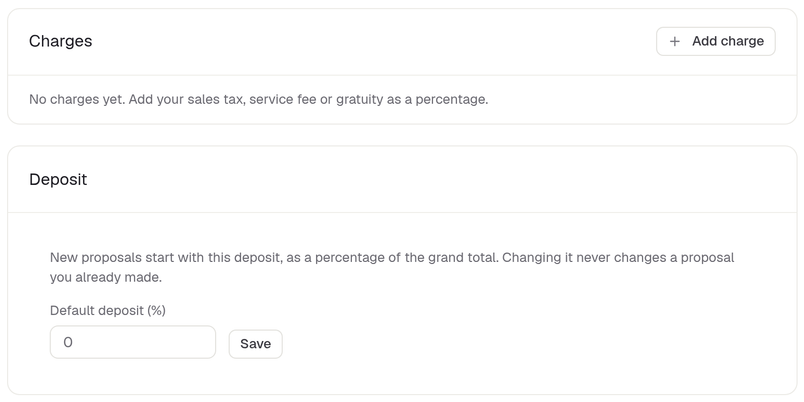
Charges are percentages added on top of your prices, such as sales tax, a service fee or gratuity. On the Charges tab, click Add charge and enter a name and a percentage rate.
- Move charges up or down to set their order.
- Charges can't be deleted. Archive one you no longer use instead. Archived charges stay in the list, greyed out, and you can restore them at any time. This keeps older proposals accurate.
Default deposit
On the same tab, the Deposit panel sets the deposit new proposals start with, as a percentage of the grand total. Enter it in Default deposit (%) and click Save.
Changing the default never changes a proposal you've already made. You can still change the deposit on any single proposal.
Menu
The Menu tab is a priced list of the packages, food, drinks and extras your team puts on proposals. Click Add category to group items, and Add item to add one.
Each item has a name, an optional description, a price and a price type: per hour, per item or per person. To offer a discount, enter a negative price. Each item also has a checkbox for every active charge, so you choose which charges apply to it. These start unticked.
Items and categories are reordered, archived and restored the same way as charges. Changing an item's name or price doesn't change lines already added to a proposal.

This Menu is separate from the menu and package details in Venue knowledge. Venue knowledge is what our team uses to answer planners' questions; it isn't changed by anything you add here.
Custom fields
Custom fields are your own questions to answer for every event, such as a preferred room or a dietary note. On the Custom fields tab, click Add field, choose a text field or a select (a list of choices), and set its order.

- A field's type can't be changed after it's created.
- Renaming a field updates its label on every event, including past ones.
- If you remove a choice from a select field, existing answers stay until someone picks a current choice.
- Archived fields keep their existing answers readable but don't take new ones.
- A field can be marked Show on inquiry form, but your inquiry form doesn't use this setting yet.
Once you have at least one field, a Custom fields section appears on each event. A text answer saves when you press Enter or click away; a select saves as soon as you pick a choice.
Creating a proposal
Open an event, go to the Proposal section and click Create proposal. Each event has one proposal.
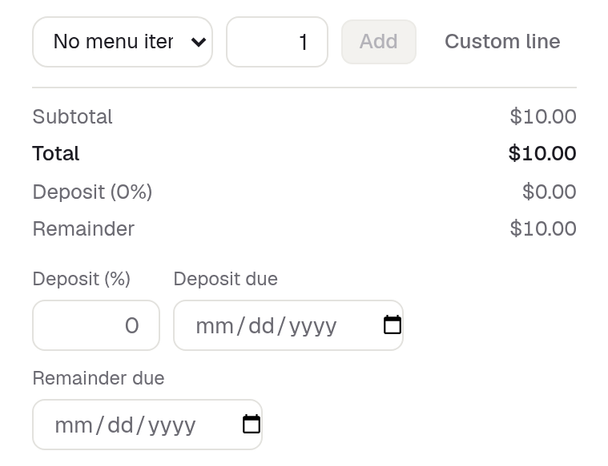
- To add a menu item, choose it from the No menu item dropdown, type a quantity and click Add.
- For a one-off line that isn't on your menu, click Custom line and enter a name and price.
- Change a line's quantity, or which charges apply to it, right on the proposal. Click ✕ to remove a line.
For per-person items, type the number of people yourself. The quantity isn't filled in from the event's group size.
Totals and deposit
The totals update as you go: Subtotal, each charge that applies, Total, Deposit (with its percentage) and Remainder. A charge only shows when at least one line uses it, so you won't see empty $0.00 rows.
Below the totals, set this proposal's Deposit (%) and the Deposit due and Remainder due dates.
The proposal total is separate from the Event Value in Event Details. Event Value is the event's estimated value, used in your pipeline numbers; creating or changing a proposal doesn't change it. See Inquiries.
Card payments
Guests can pay by card from the proposal link they already have. They pay on a secure Stripe page, and the money goes straight to your own Stripe account, then to your bank on Stripe's schedule. Event Captain never holds guest money and takes no cut. Stripe's processing fee comes out of your payout, and guests don't see a fee line.
Card payments use your Stripe account. If you've already connected Stripe to Event Captain, there's nothing more to set up. If you don't have Stripe yet, you can create an account when you connect it. See Stripe.
What the guest sees
- While a deposit is owed, the proposal shows Pay deposit and Pay in full. Once the deposit is covered, it shows Pay remaining balance. Guests never type an amount, and a fully paid or cancelled proposal has no pay button.
- If a card is declined, they see the error on the payment page and can try again.
- They can tick a box (unticked to start) to save their card for this event's remaining balance. The wording tells them you may charge it.
- After paying, their invoice view updates straight away, and Stripe emails them a receipt from your account.
Payments on an event
Open the event and find Payments. Each successful card payment appears there automatically with the card brand and last four digits. Failed or abandoned attempts don't appear, and card payment rows can't be edited. Below the list are Payments received and Balance due, and a Deposit line reading Covered or Not covered yet when the proposal has a deposit.
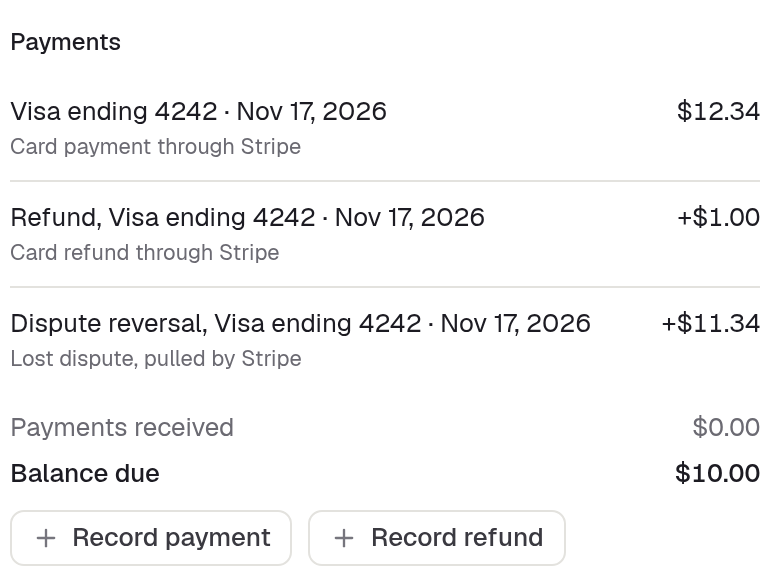
- Refunds: you can refund a card payment, in full or in part. Refunds made in your own Stripe dashboard show up here too. Use Record refund for money you returned another way, such as cash.
- Payments made another way: use Record payment. Recording a payment doesn't change the event's status.
- Disputes: if you lose a card dispute, it shows as a dispute reversal. Disputes are handled in Stripe.
- Status: the first successful card payment moves the event to Confirmed automatically if it was still at an earlier stage, such as Inquiry.
Card on file and scheduled payments
If the guest saved their card, you'll see Card on file: and can use Schedule a payment under Scheduled payments. Choose the remaining balance (worked out on the day it's charged) or type another amount, and pick a date. A payment dated today is charged right away; later dates are charged automatically. You can change or cancel a scheduled payment any time before it's charged. If the card is declined, the payment is marked failed and you're notified once. It isn't retried automatically.
Asking for payment
Request payment opens the composer with the guest's email, the amount due and the proposal link already filled in. Re-send and New link sit beside it.

Anyone on your venue's team can refund or schedule a payment, and each action records who did it. Payouts, disputes and receipt branding are managed in Stripe.
Good to know
- The guest pays from their proposal link. See Card payments.
- Charges, menu items and custom fields are archived rather than deleted, so older proposals keep their meaning. Archiving can always be undone.
Can't find what you need? Reply to any email from your Event Captain team and we'll sort it out.