
Help Centre / Using Your Dashboard
Attaching documents to email templates and follow-ups
You can attach PDFs from your Documents library, such as your menu or packages, to saved email templates and to each step of an auto follow-up sequence. When the email goes out, the latest version of the file is attached.
Your Documents library
Attachments come from your Documents library, the PDFs you already use for tracked links. To find it, open the account menu (your account chip at the top right) and choose Event deck links. The page is called Event deck tracking links. It's no longer a tab in Settings.
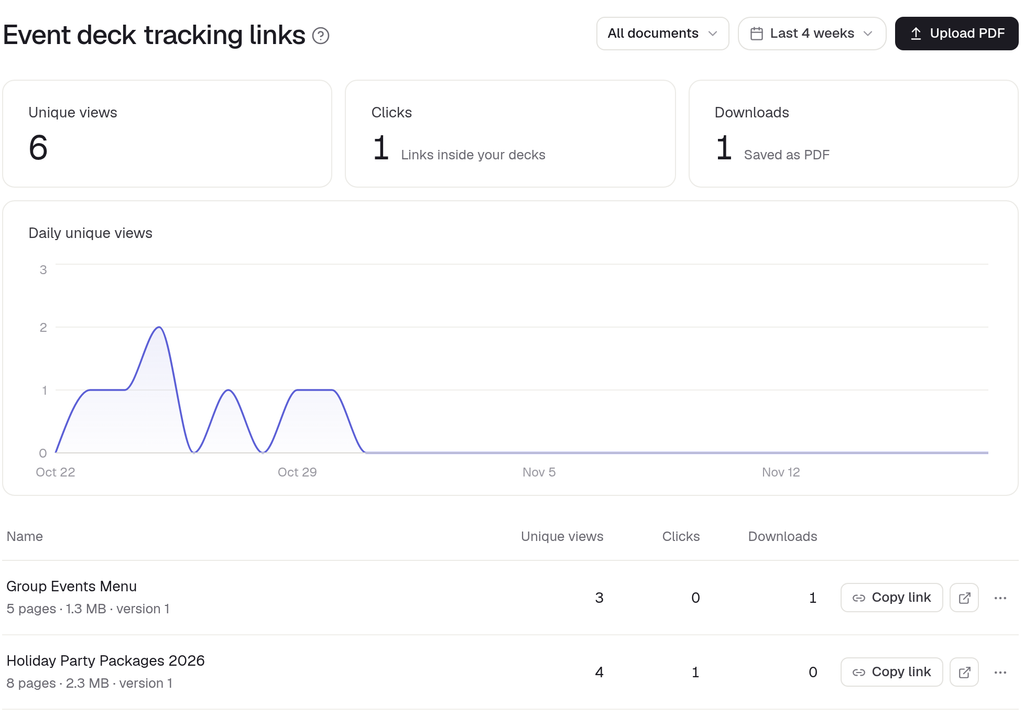
Use Upload PDF to add a document. A file has to be in the library before you can attach it. You can't upload one from a template or sequence.
Attaching to an email template
- Open Settings from the account menu and choose the Email templates tab. If you don't see it, scroll the tab row sideways.
- Click Add template, or Edit on an existing one.
- Under Attachments, click Attach from your Documents and pick a file. Each one shows its name and size.
- Click Save changes (or Add template for a new one).
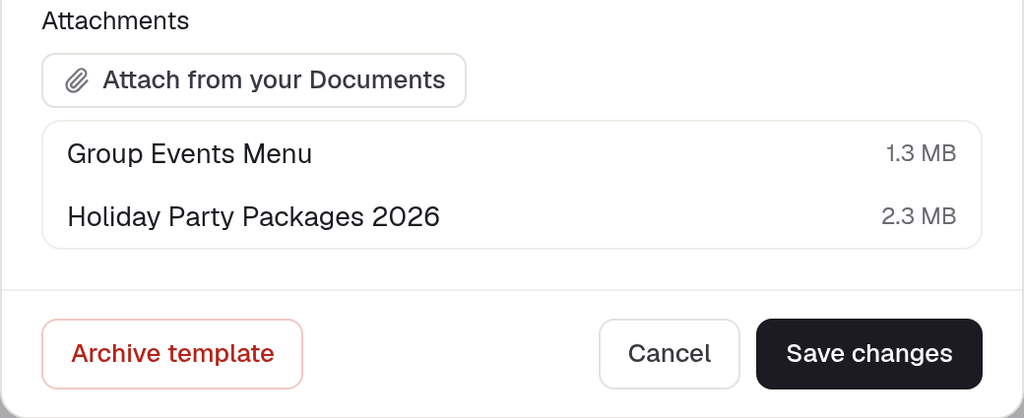
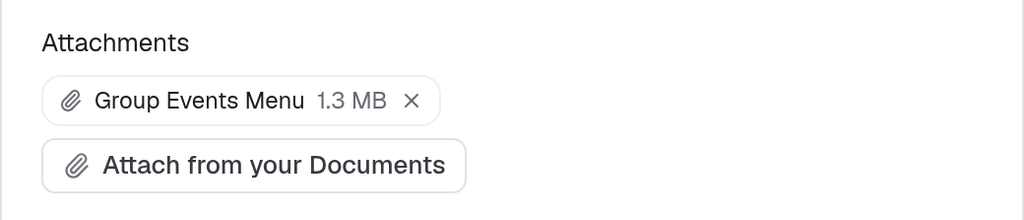
An attached file shows as a chip with its size. To stop attaching it, click the ✕ on the chip and save. This doesn't delete the file from your library.
If the library is empty, the picker says "Your Documents library is empty." with an Add a document link to Event deck links.
Attaching to a follow-up step
On the Follow-up sequences tab in Settings, click Edit on a sequence. Each step in the Edit sequence dialog has its own Attachments section and Attach from your Documents button, because each step is its own email. Click Save changes when you're done.
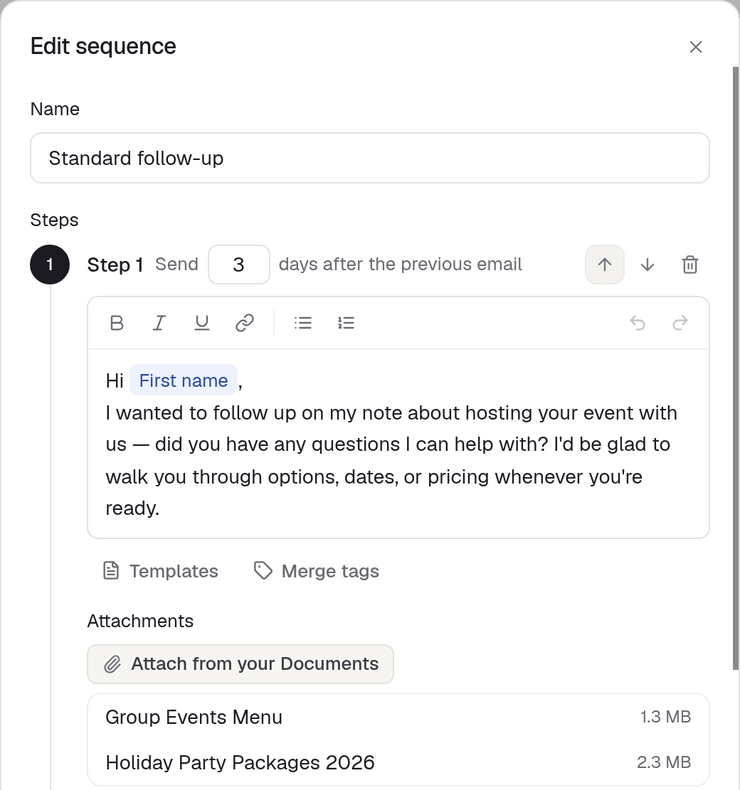
If you insert a template into a step, the template's attachments are added to the step too, without doubling any already there.
When you send
When you reply or click Send email on a lead or event and insert a template from Templates, its documents appear as chips next to any files you've picked from your computer, with a running total of the size. Removing a chip only affects that one email, not the saved template. See Activity and replying.
Each document goes out as an ordinary PDF attachment. It isn't a tracked link, so opening it isn't counted in your deck views. To see who opens your deck, send the tracked link instead. See Event deck links instead of PDFs.
Bulk emails still go out without attachments. If you pick a template that has documents, the bulk email notes that attachments aren't sent. Newsletters don't carry attachments either.
Updating or removing a document
Attachments are linked to the file in your library, not copied. To update a file everywhere at once, use Replace PDF on that document. Every template, follow-up step and new email that uses it will send the new version, with nothing to re-attach.
To remove a document, open its ⋯ menu on Event deck tracking links and click Remove. The confirmation warns that anyone opening its tracked link will see a page saying it's no longer available, and that templates using it will send without the file. Click Remove to confirm or Cancel to keep it. Templates and follow-up steps that used it simply go out without it.
Size limit and other limits
- All attachments on one email, library documents plus any files from your computer, can add up to 4 MB. If a template or step goes over, it won't save and you'll see "These documents add up to more than 4 MB. Remove one to save."
- If a newer, larger version of a file later pushes a follow-up step over 4 MB, the follow-up still sends with the files that fit, in the order they were added.
- If an attached document can't be loaded for a moment, an email you send yourself is stopped with "Your attached documents couldn't be loaded. Try sending again." rather than going out without it. An automatic follow-up waits and tries again later.
- To attach documents to follow-up steps, use the Follow-up sequences tab in Settings.
Can't find what you need? Reply to any email from your Event Captain team and we'll sort it out.