
Help Centre / Using Your Dashboard
The Calendar page
Open Calendar from the left menu of your dashboard to see your events, meetings and notes on a month grid. Your newsletters appear there too, so you can plan events around them.
Opening an event from the calendar
Click an event on the calendar to open a small popover beside it, rather than a side panel. It shows the event name, the date and time, its status, the person and organization, and details such as group size, space and value. Click View event to open the full event. Use the pencil to edit, or the ✕ to close it.
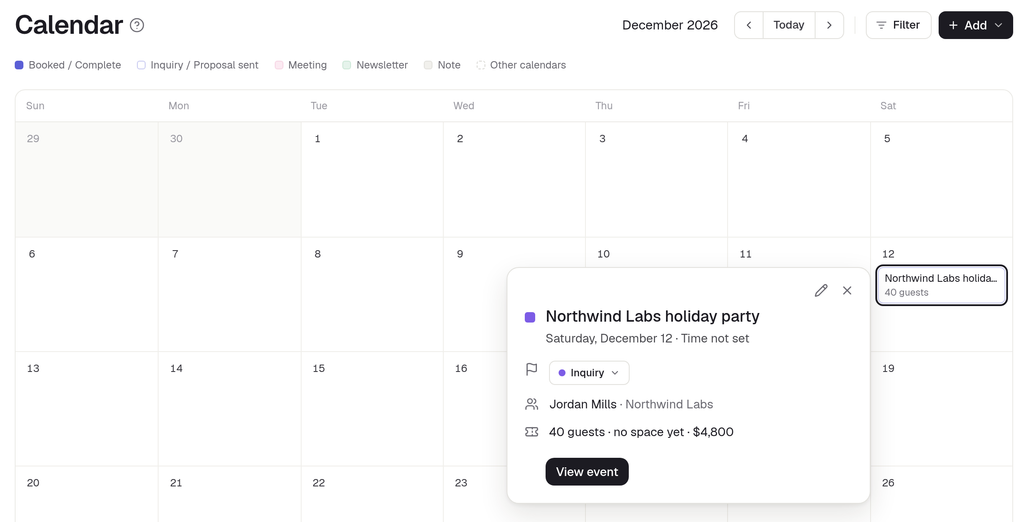
Meetings open a similar popover, with a button to open the lead. Whichever you open, it appears in the same centred overlay you get from the Events and Interested Leads pages. See Opening an event.
Newsletters on the calendar
Newsletters that are scheduled, sending or already sent appear on the calendar on the day they go out, in your venue's time zone. Each one shows its subject (or "Untitled" if it doesn't have one) and its send time.
- Newsletters have their own colour. Upcoming ones are shown solid, and sent ones are muted, so you can tell what's coming from what has already gone out.
- Sent newsletters stay on the calendar when you go back through past months.
- A newsletter sent with Send now appears on the day it actually went out.
- If a scheduled newsletter is unscheduled, it disappears from the calendar the next time the page loads.
Only newsletters with a real send date are shown. Drafts, newsletters you've approved but not scheduled, and requests we're still working on stay on the Newsletters page.
Opening a newsletter
Click a newsletter on the calendar to open its page: its report if it has already sent, or its scheduling options if it's still scheduled. You can't create, schedule or reschedule a newsletter from the calendar itself. Do that from the newsletter's own page. See Changing the send time or sending now.
Showing or hiding newsletters
To hide newsletters while you plan events, click Filter, next to Today, and untick Newsletters, below the Status and Scheduling page options. It's one switch for all newsletters, whatever their status.
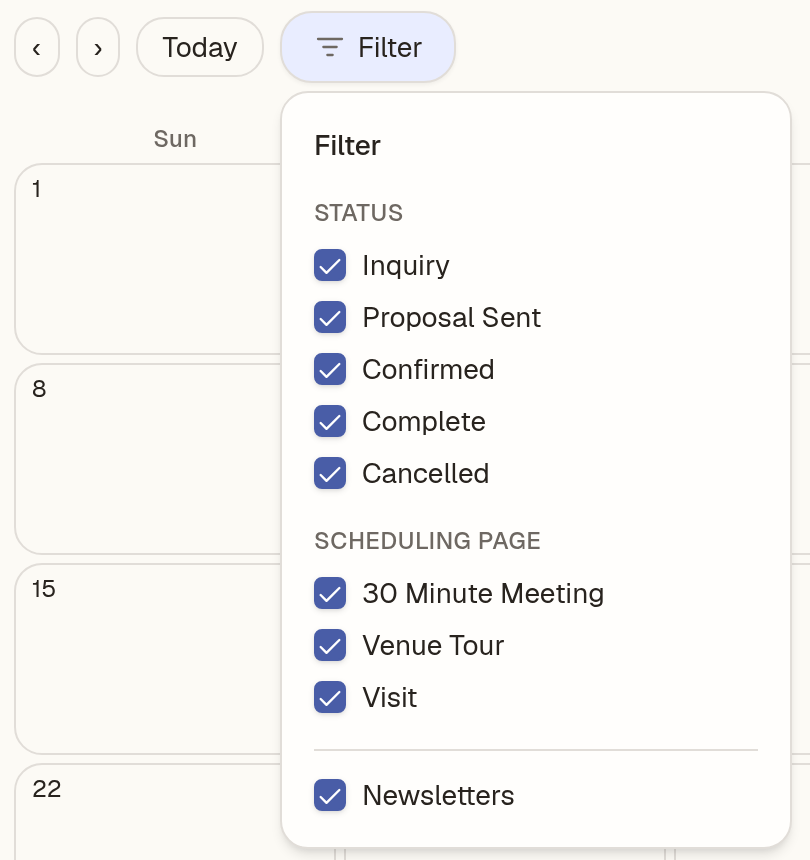
- Your choice is remembered on this device.
- Hiding newsletters counts toward the number shown on the Filter button.
- Clear all turns newsletters back on.
The Newsletters checkbox only appears when there are newsletters to show.
If you have more than one venue
Newsletters only appear on the calendar of the venue that sends them. A sister venue that doesn't send newsletters won't see them or the Newsletters checkbox. See Managing more than one venue or brand.
Can't find what you need? Reply to any email from your Event Captain team and we'll sort it out.